How to Make Character Dance Animations in MMD: Using XSTAGE Motion Data

If you make cover dance or challenge videos in MMD (MikuMikuDance), you can download motions from XSTAGE directly in VMD format and skip conversion entirely. Here is how it works. The video below was made by applying XSTAGE motion data in MMD.
https://x.com/NOAH_Kirk1209/status/2077033205610496479
MMD video created with XSTAGE motion data. Created by Noah Kirkland (@NOAH_Kirk1209)
What you'll need
- MMD software — free from the site the developer maintains: VPVP (Japanese) / English page. Get the 64-bit build (MikuMikuDance x64 Ver).
- A PMX character model — XSTAGE motion downloads include NOAH and IAN models in the [standard] folder, so you can test immediately without sourcing one. For other characters, see BowlRoll (Japan's main MMD model hub), BOOTH (creator marketplace, many free releases), and DeviantArt. Terms differ per model, so always check the conditions on the distribution page.
- An XSTAGE motion
No motions yet? You can test with free motion data first.
On this page
- The formats MMD uses
- XSTAGE gives you VMD directly
- How to use it
- FAQ
- Recommended motions
The formats MMD uses
MMD uses PMX for models and VMD for motion. If you can only get FBX elsewhere, you have to convert it yourself in a tool like Blender, and mismatched bone structures commonly leave arms or legs moving incorrectly.
XSTAGE gives you VMD directly
In the "Download options" dialog that opens when you download a purchased motion, you can set the file format to mmd (VMD). No conversion tool and no bone retargeting: load the file straight onto your MMD model.
Step 1. Choose VMD in the download options
On My Page, open [Purchased Motions] in the left menu, check the motion you want, and click [Download]. In the [File Format] dropdown, choose [mmd(vmd)] — the frame rate is fixed at 30fps automatically. [Download] gives you a zip containing the motion (.vmd) and a character model (.pmx — NOAH for female motions, IAN for male motions).
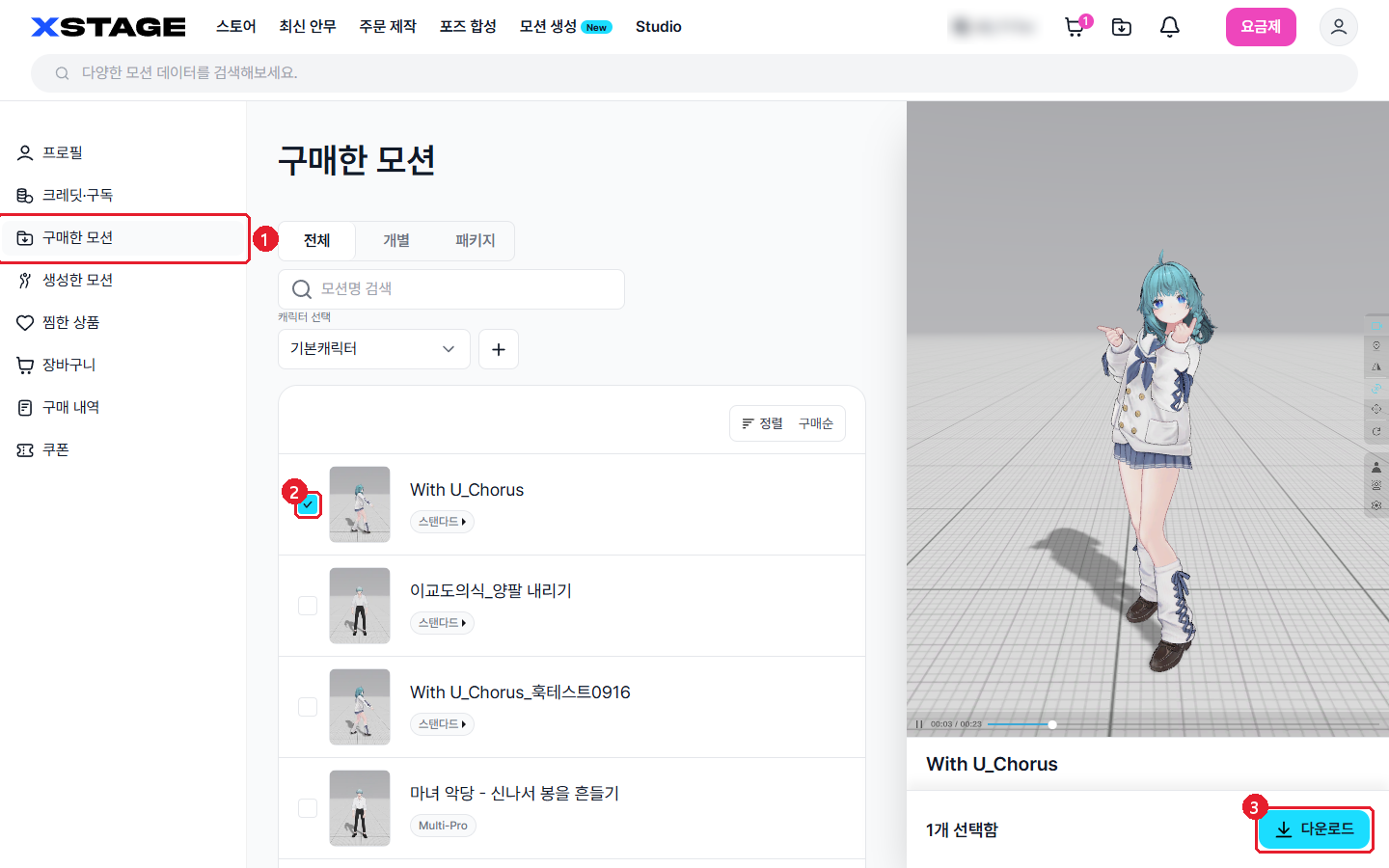
In My Page, open [Purchased Motions] in the left menu and check the motion you want
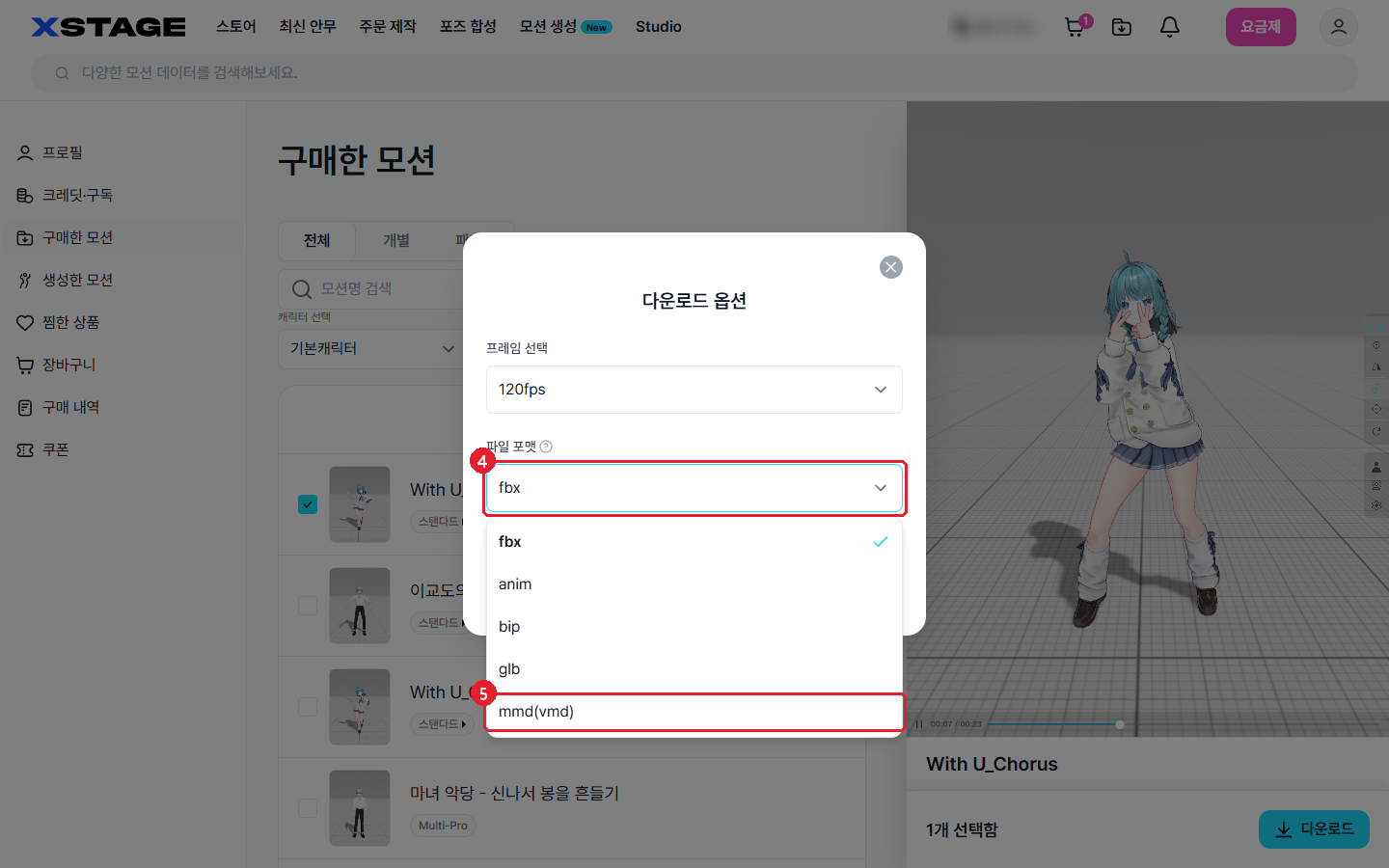
Click [Download] at the bottom right, then choose [mmd(vmd)] from the [File Format] dropdown (frame rate is fixed at 30fps automatically)
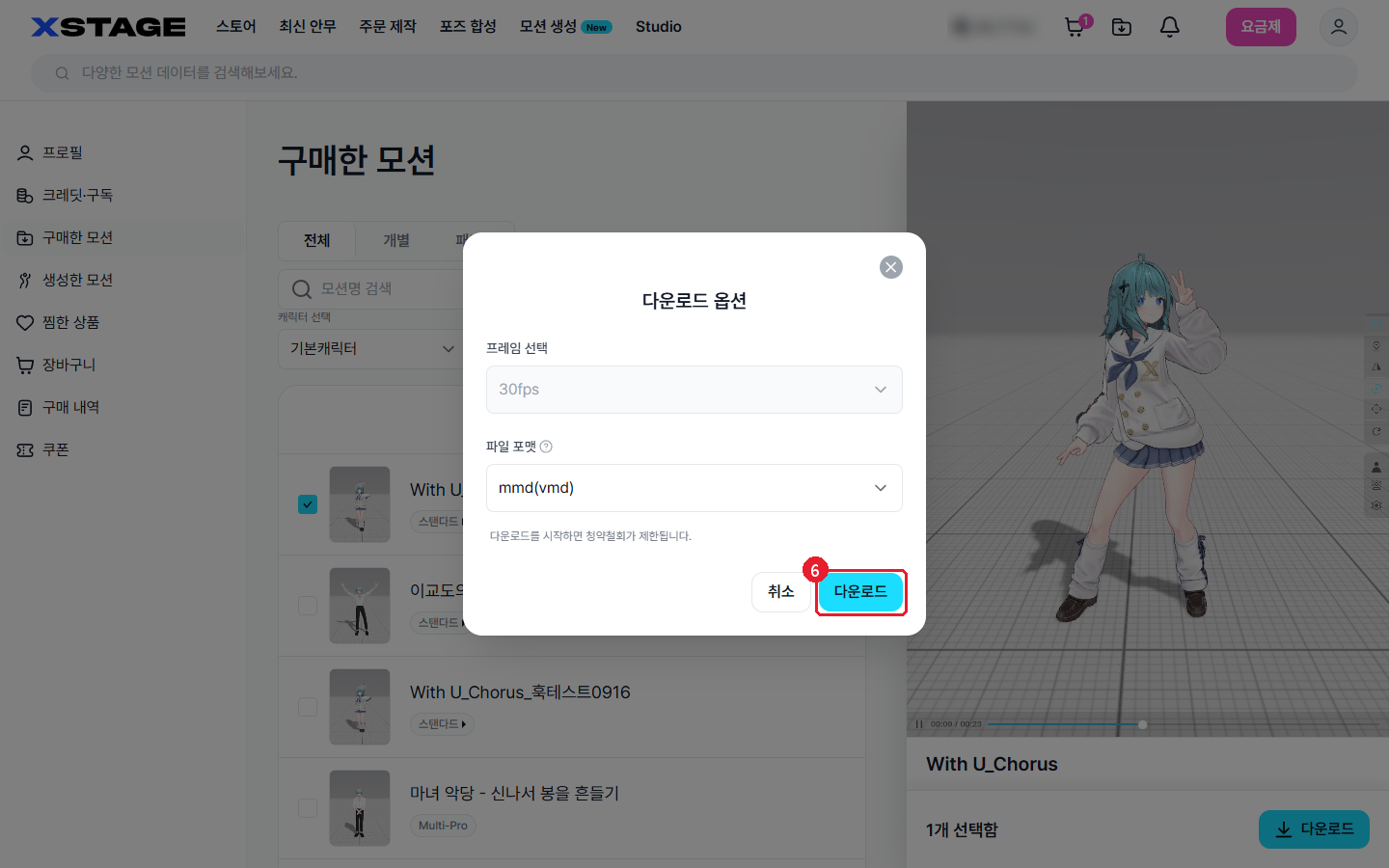
Click [Download] — the zip contains the motion (.vmd) and a character model (.pmx: NOAH for female motions, IAN for male motions). A notice about purchase-withdrawal limits appears when the download starts.
Step 2. Load the model in MMD
In MMD 9.32 (English mode), use the [Load] button in the [Model Manipulation] panel at the bottom left to open the PMX model (NOAH or IAN) from the [standard] folder in the zip.
Tip If you have several models loaded, check that the one you want the motion on is selected first.
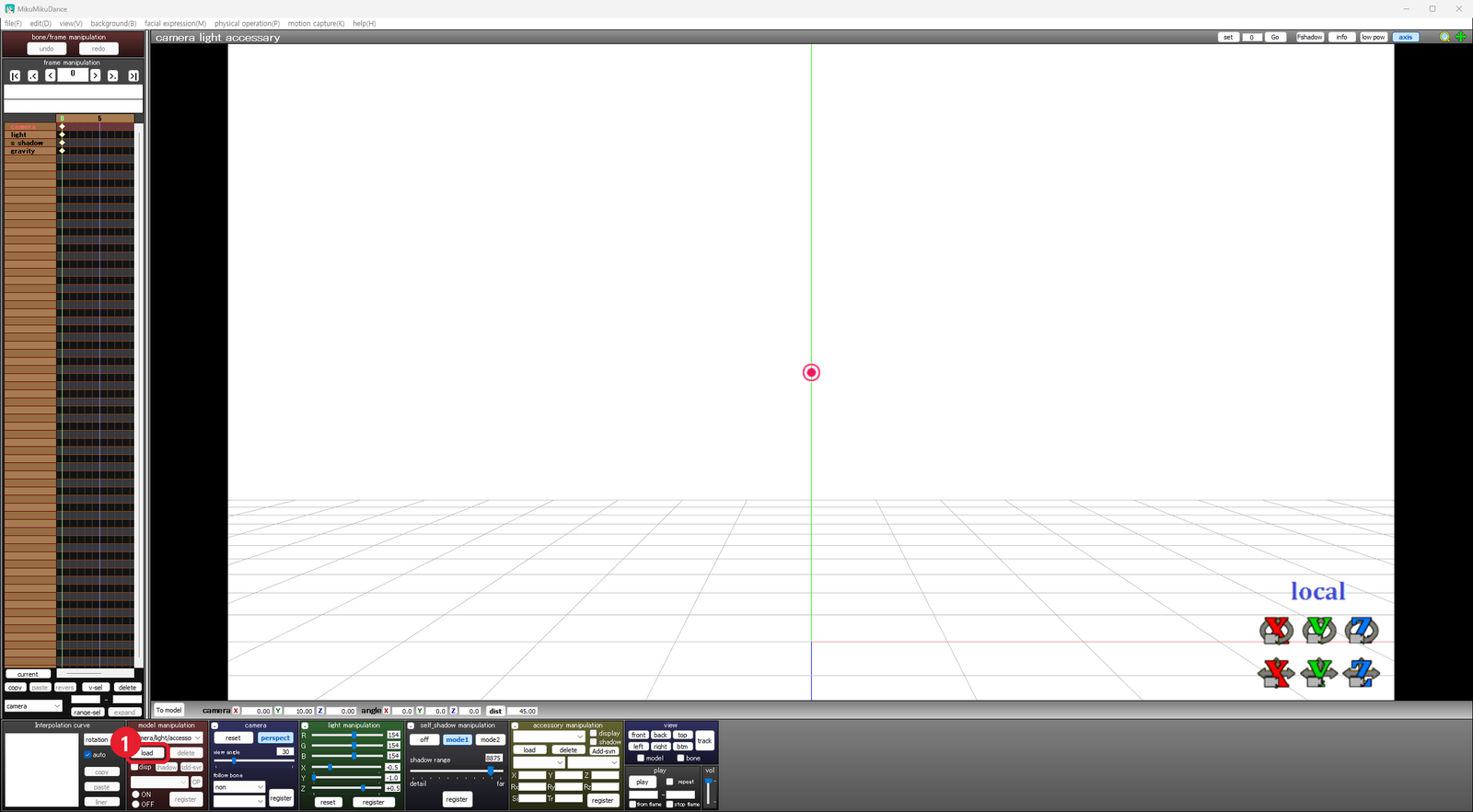
Click [Load] in the [Model Manipulation] panel at the bottom left
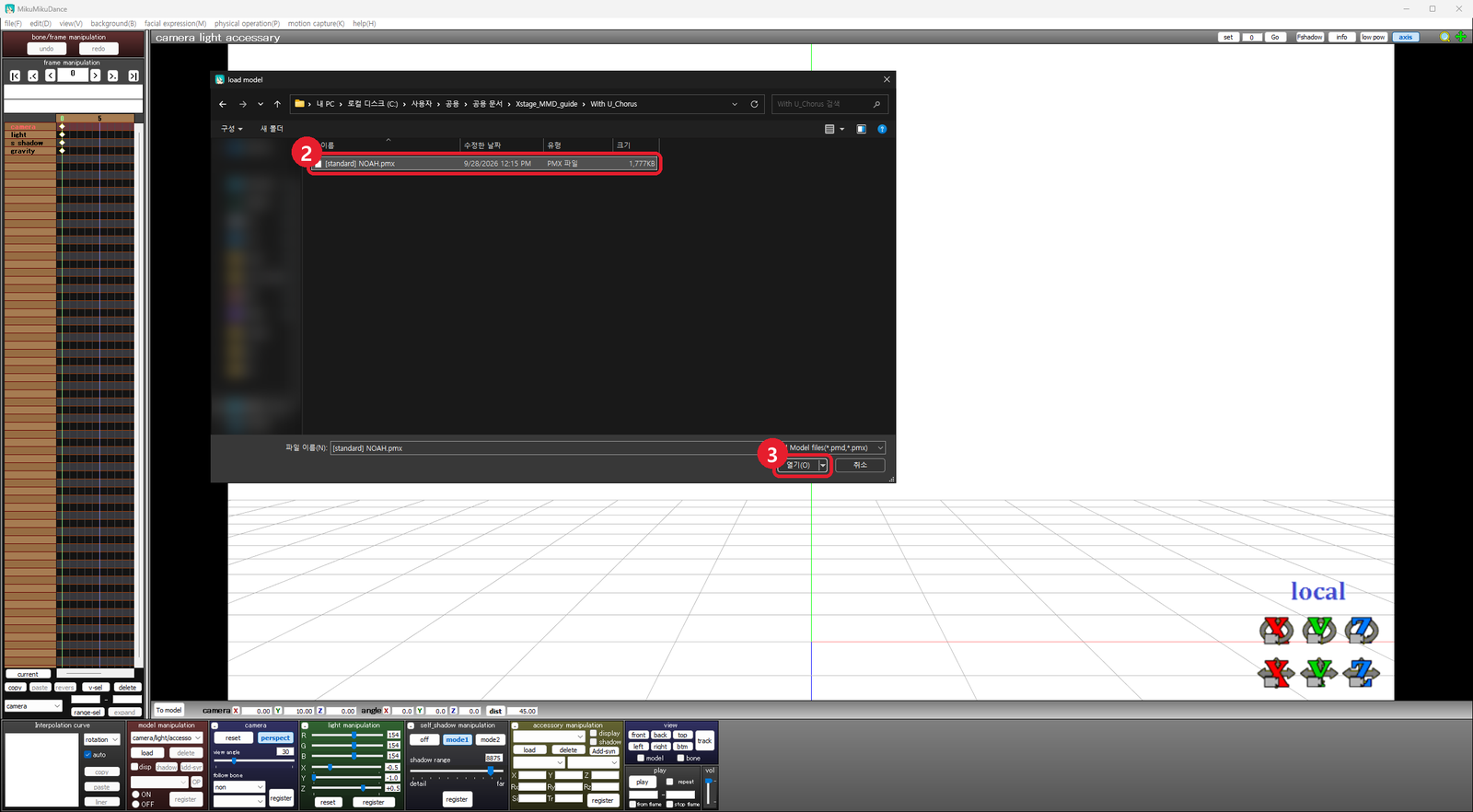
From the unzipped folder, open [standard] and select NOAH.pmx
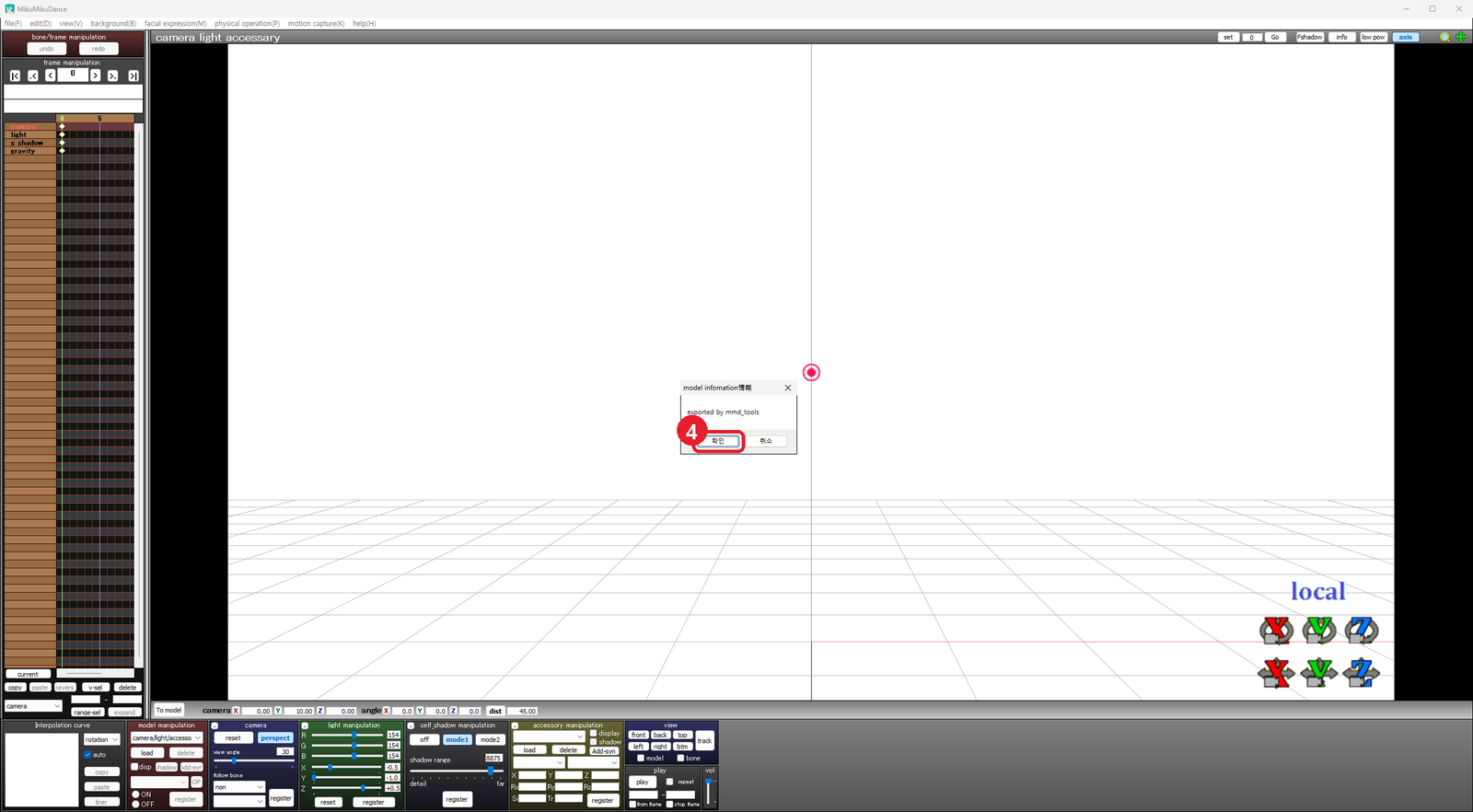
Click [Open], then [OK] in the model info dialog
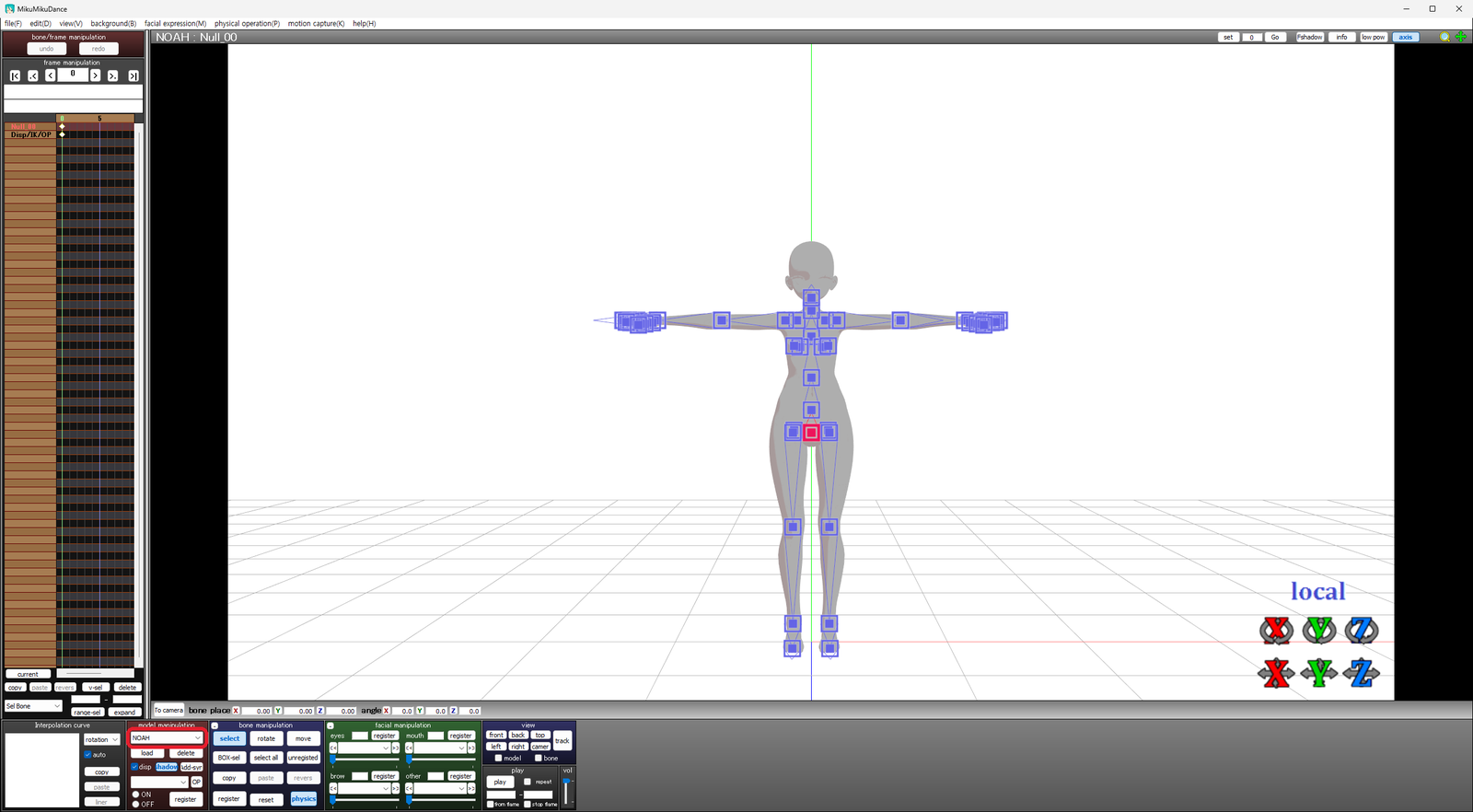
Done once the character appears and NOAH is shown in the Model Manipulation field
Step 3. Play it back
From the top menu, go [File] → [Load Motion Data] and open the VMD file in the [standard] folder. Accept the dialog explaining that only motion on matching bone names is applied; keyframes appear on the timeline, and [Play] runs the motion so you can check it.
Warning If limbs twist or joints pass through the body, the model's bone structure most likely differs from the standard.
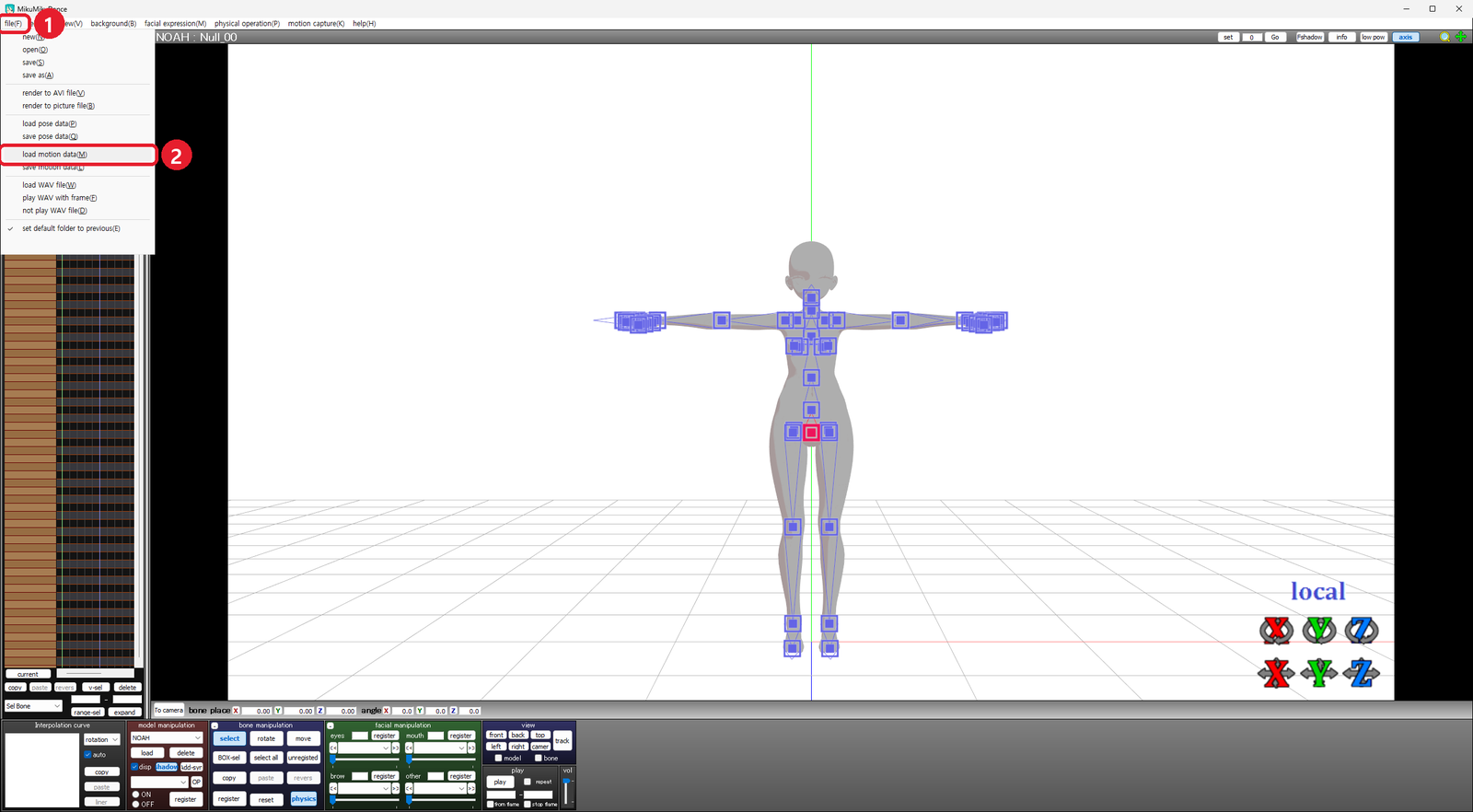
From the top menu, click [File] → [Load Motion Data]
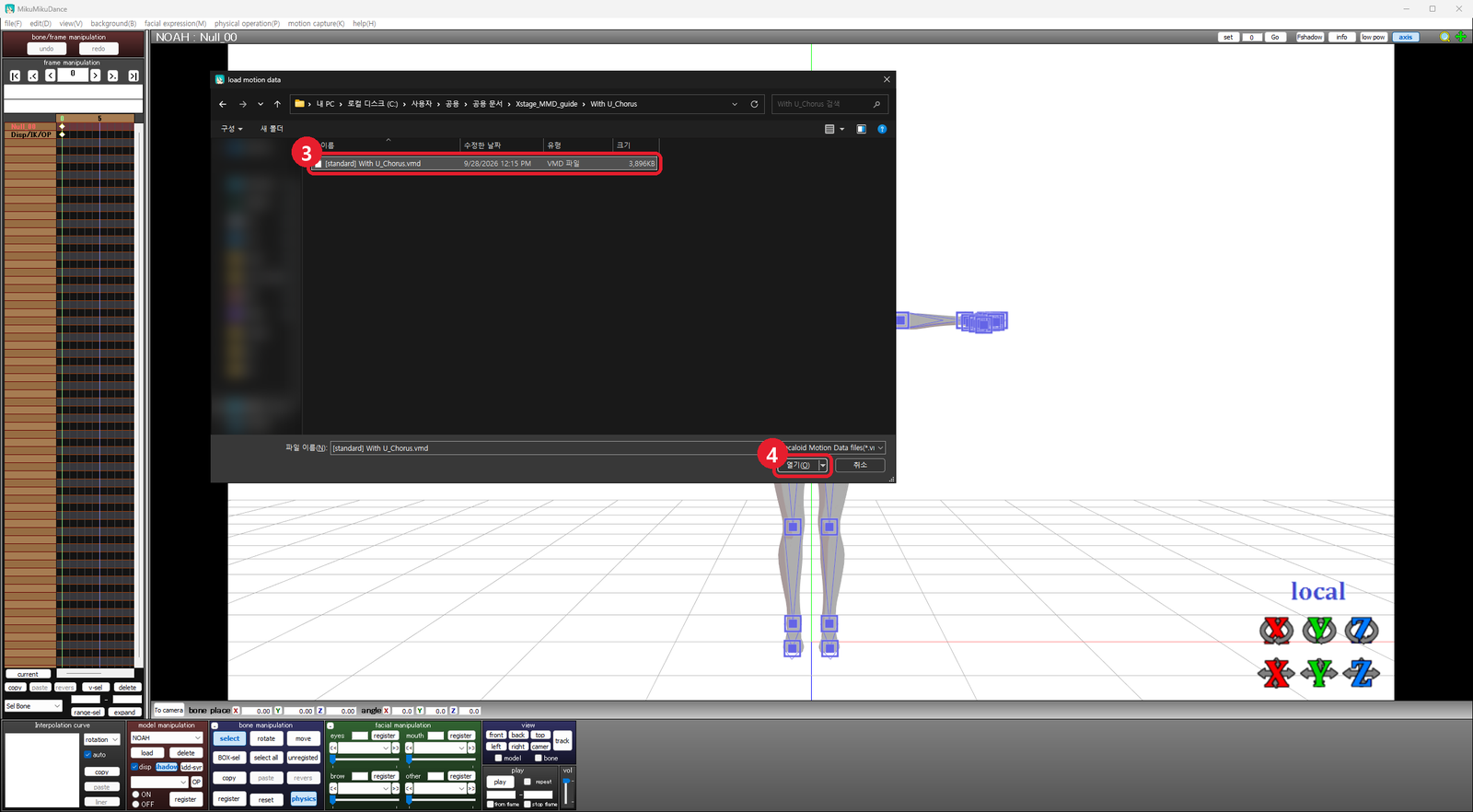
Select the VMD file in the [standard] folder (here: With U_Chorus.vmd) and click [Open]
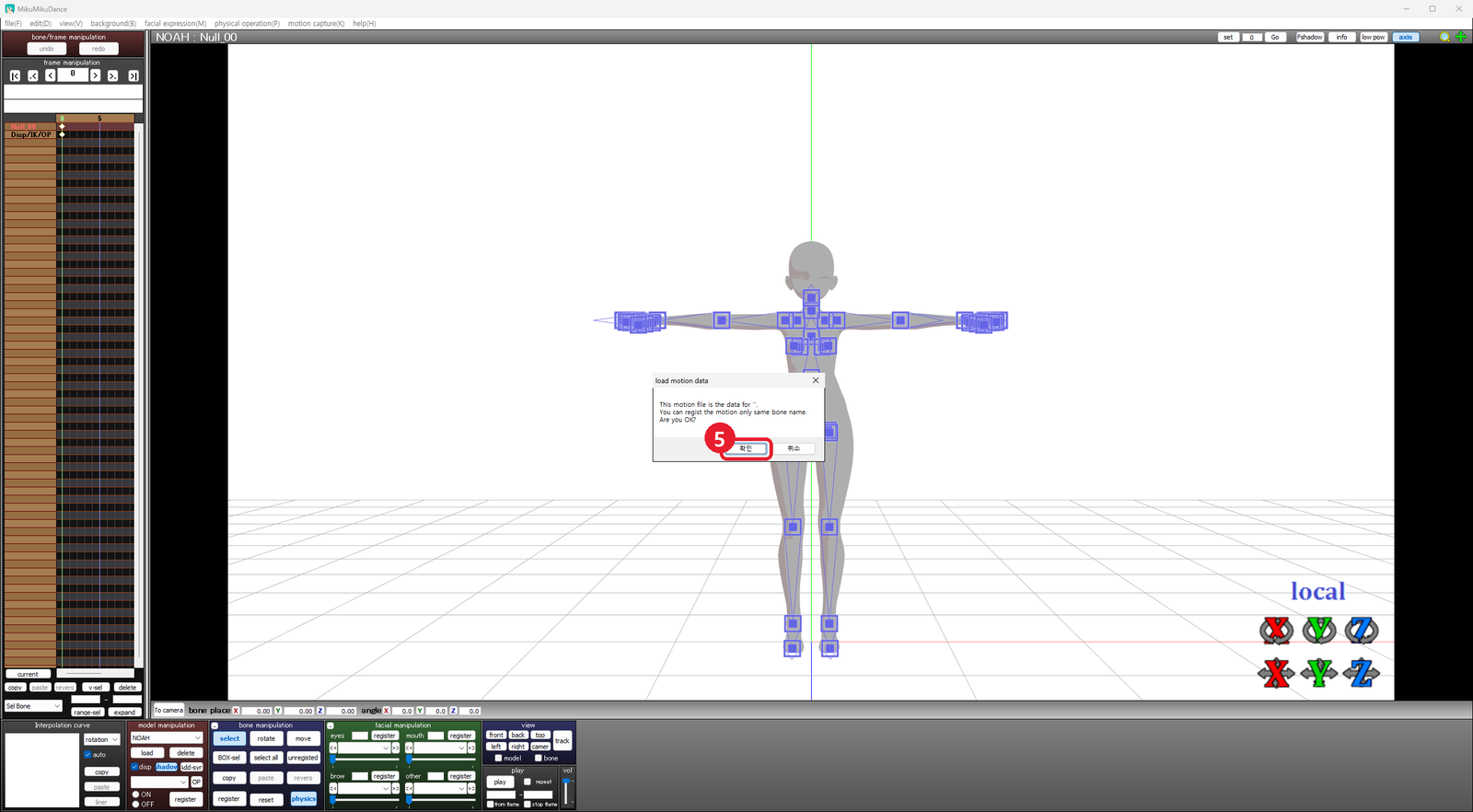
Click [OK] on the dialog explaining that only motion with matching bone names is applied
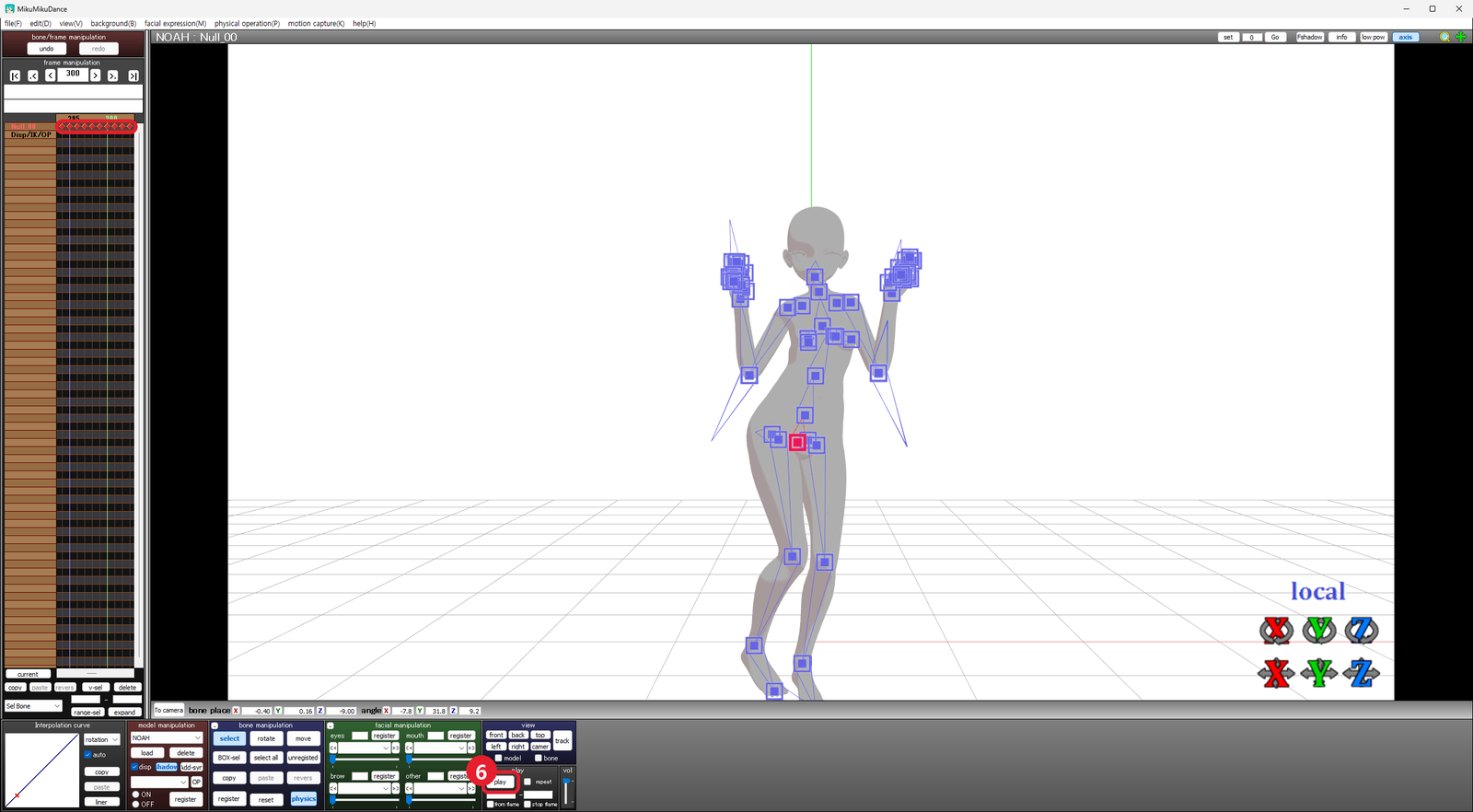
Keyframes (◆) on the timeline mean the motion applied. Use [Play] to check it. The motion goes to the currently selected model — the one shown in the Model Manipulation field.
FAQ
Q. Why is this better than converting FBX myself?
It skips the bone-mapping errors that conversion introduces. Downloaded as VMD, the file loads straight into MMD with no extra tools.
Q. Are all XSTAGE motions available as VMD?
Most are, but it varies by product, so checking the download options dialog is the reliable way to confirm.
Recommended motions
Anime Challenge [ver3] — all 22 motions in this pack support VMD download. It centers on Vocaloid, hololive, and anime trend tracks, so it sits well on MMD models.
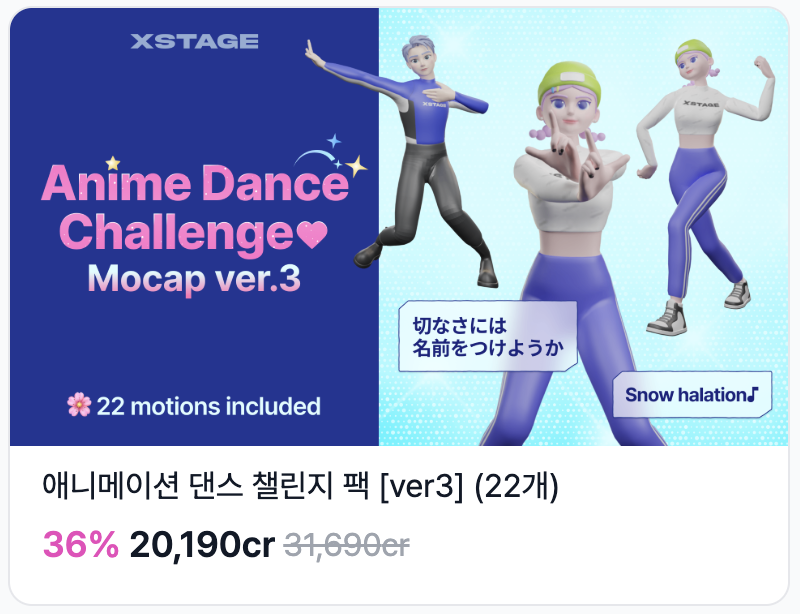
https://www.xstage.co/en/motions/packages/24760
Picks from the pack that MMD users respond to most:
- Konton Boogie Dance Challenge (24s) — Vocaloid original; includes jumps, claps, and running
- Color Rise Harmony (46s) — hololive-adjacent; built around hand and heart gestures
- Complex Princess (24s) — Houshou Marine original; detailed finger and heart work
- Evangelion Dance Challenge (30s) — anime homage, easy groove
Want to try a VMD download yourself? Start with free motion data.
Guías relacionadas