How do I apply motions to a VRChat avatar? From FBX download to Expression Menu
How to apply XSTAGE FBX dance and emote motions to a VRChat avatar. Humanoid retargeting, connecting the Action/FX layer, and registering in the Expression Menu, all in one guide.
XSTAGE is a 3D motion library that provides motion-captured K-POP, dance challenge, and emote motions as FBX files. A VRChat SDK3 avatar can import the FBX as-is with no conversion. Set it to Humanoid, connect it to an Animator Controller (the Action layer for full-body dances) and the Expressions Menu, and you can play the dance straight from the menu.
What you need before you start
- A Unity project with VRChat SDK3 (Avatars) installed, and an avatar that is already ready to upload — Download VRChat Creator Companion (it installs the Unity version that matches the SDK for you)
- An FBX motion file downloaded from XSTAGE — Browse motions
- Check that your avatar has a humanoid rig (most VRChat avatars do)
The steps at a glance
- Studio: get the motion — FBX or ANIM
- VCC: create the avatar project
- Import the FBX into Unity — Humanoid + Loop Time · Bake Into Pose
- Put the dance in the Action layer — turn on Foot IK
- Create a button in the Expressions Menu
- Test in Unity → upload to VRChat (New User rank or higher)
- In VRChat, press R → Expressions → play the dance
Which layer to use: full-body dances and emotes go in the Action layer, hand poses (fingers, arms) in the Gesture layer, and facial expressions (blendshapes) in the FX layer. By default, the FX layer turns off the body's muscle animation, so a dance placed there will not move the body. (VRChat official docs: Playable Layers)
Tested with: Unity 2022.3.22f1 · VRChat SDK Avatars 3.10.6 · Gesture Manager 3.9.9 · sample motion Festival. The XSTAGE team ran through the whole process on a real avatar and recorded these screens.
1. Get the motion from XSTAGE Studio
- Studio: pick a character and motion, then download. For VRChat, get FBX (follow the steps in Step 3) or ANIM.
- VRMA is not used in VRChat. A VRM character also has to be converted to a VRChat avatar before it can be uploaded, and once converted it uses FBX/ANIM motions like any other avatar.
How to download from Studio:
- Pick a motion, then at the bottom right choose Download → Format and select FBX or ANIM (no 0-frame pose, kept at 60fps).
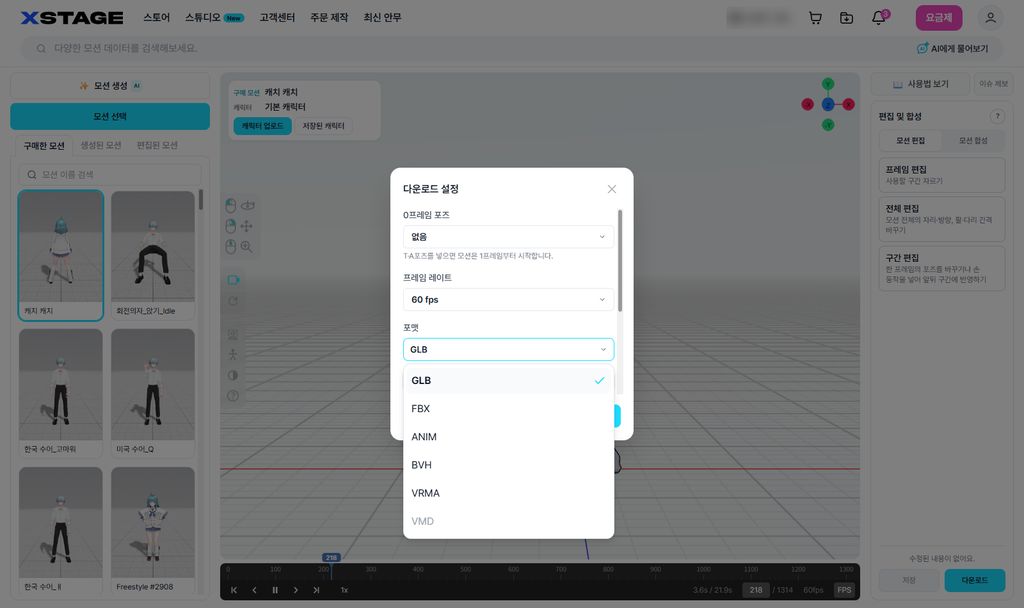
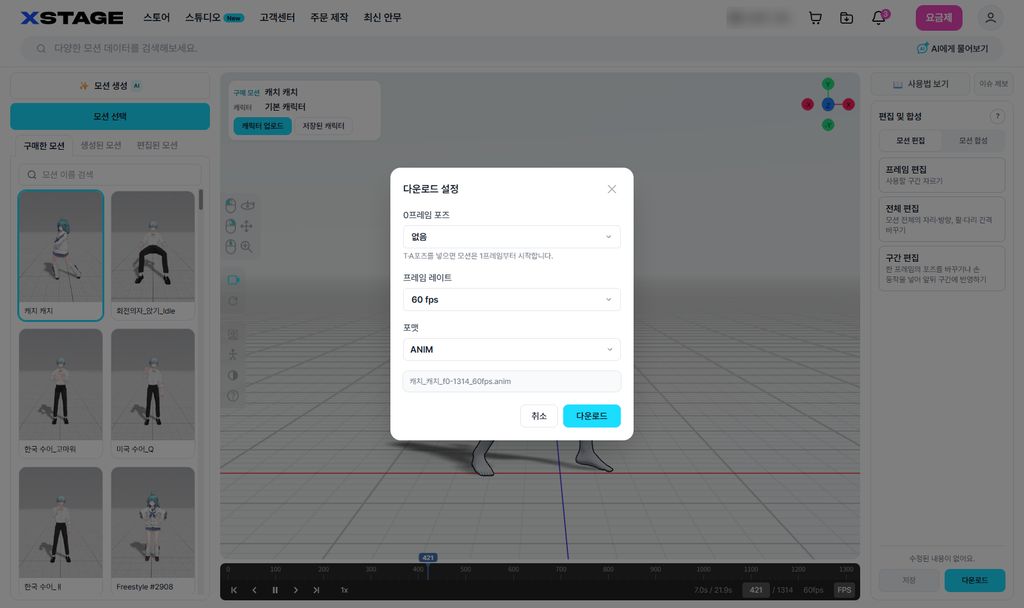
- ANIM downloads with Loop Time turned off. In Unity, select the .anim file → Inspector → turn on Loop Time so it repeats. From there, continue from Step 4 (putting it in the Motion of the Festival state).
2. Create an avatar project with VCC
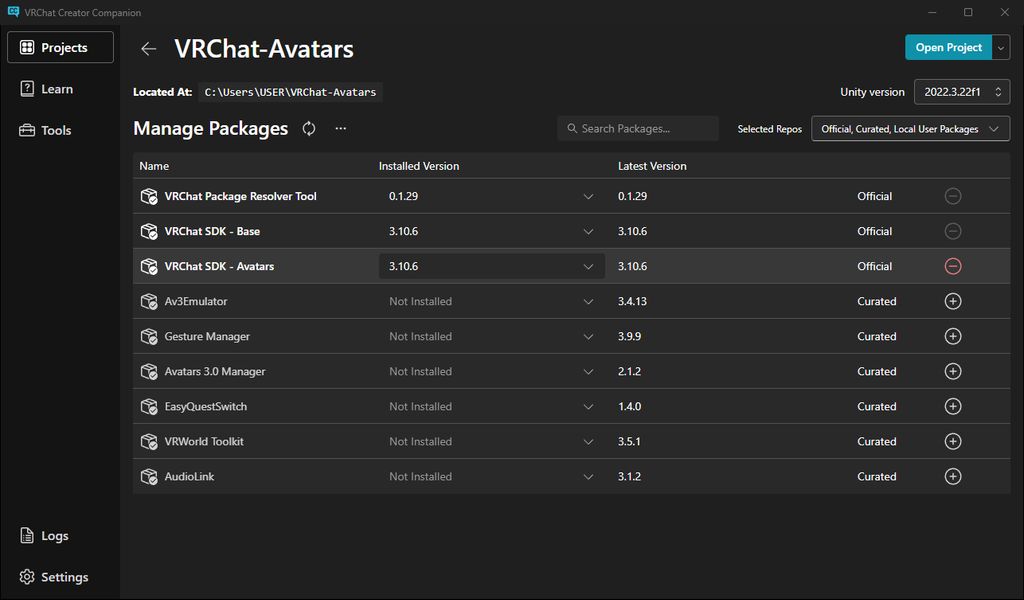
- VRChat Creator Companion(VCC): install it, then create a project with Create New Project → Avatars.
- In Manage Project, check that VRChat SDK - Avatars is included.
- To preview the dance inside Unity, add Gesture Manager too (used in Step 6).
3. Import the motion FBX
- Drag the FBX you downloaded from XSTAGE into the Assets folder.
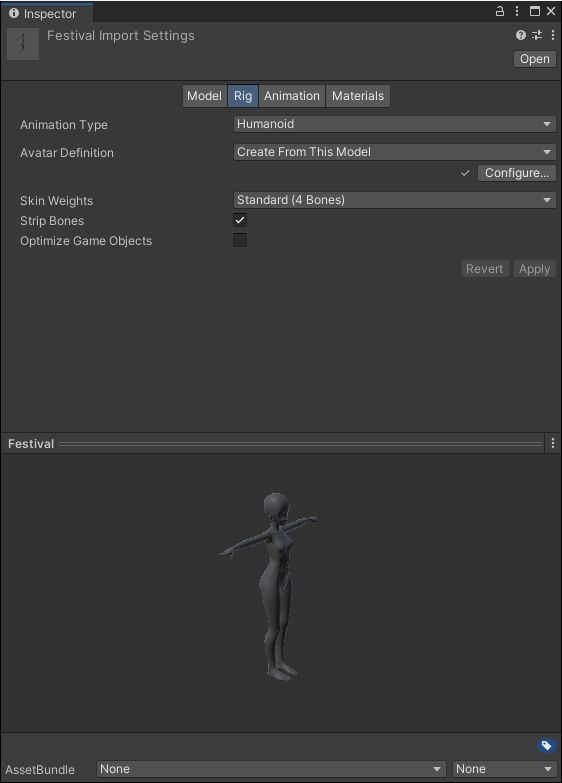
- Select the FBX → Inspector Rig tab → Animation Type Humanoid, Avatar Definition Create From This Model → Apply.
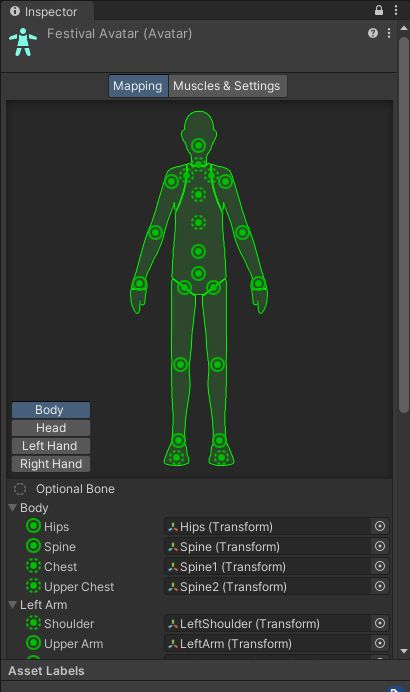
- Click Configure and check that all the bones are green.
- In the Animation tab, turn on Loop Time, turn on Bake Into Pose for all three of Root Transform Rotation · Position(Y) · Position(XZ), and set Based Upon to Original → Apply.
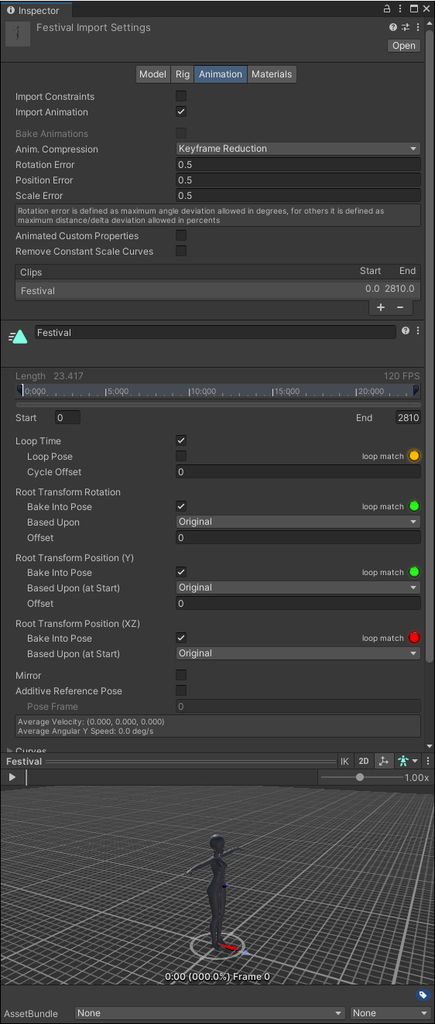
Why turn on all three? If they are off, the dance's movement and rotation move the avatar itself, and its position drifts further with every loop. With them on, the avatar returns to the same spot each time it repeats.
4. Create the Action layer
- Create an Animator Controller (for example XSTAGE_Action) and add the parameter
XSTAGE_Dance(Int). - Make two states: Idle (default, Motion = proxy_stand_still) / Festival (Motion = the clip from Step 3).
- Transitions: Idle → Festival with the condition XSTAGE_Dance Equals 1, and Festival → Idle with NotEqual 1. Turn off Has Exit Time on both, Duration 0.25.
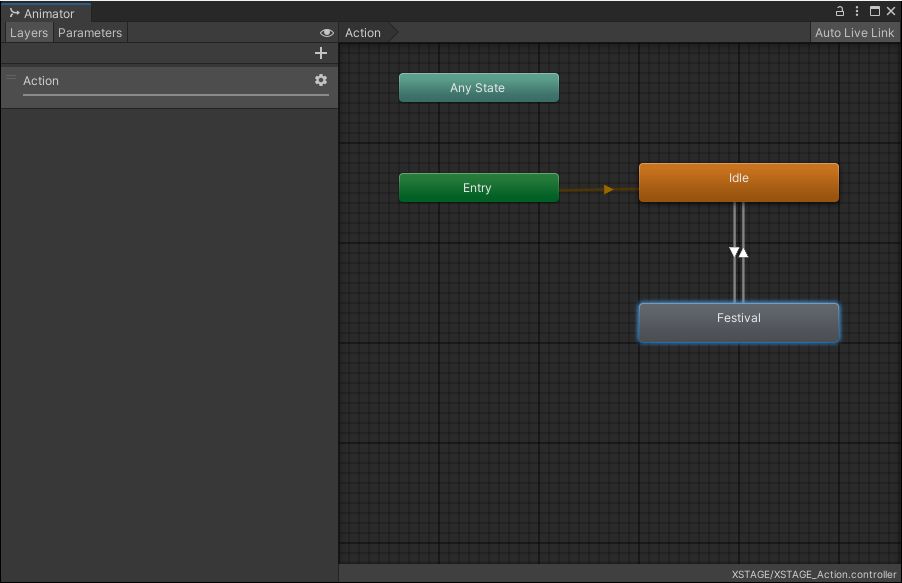
- Festival state: turn on Foot IK (required), turn off Write Defaults, add VRC Playable Layer Control (Action, Goal Weight 1, 0.25) and VRC Animator Tracking Control (Head, hands, Hip, feet, fingers = Animation; eyes, mouth = No Change).
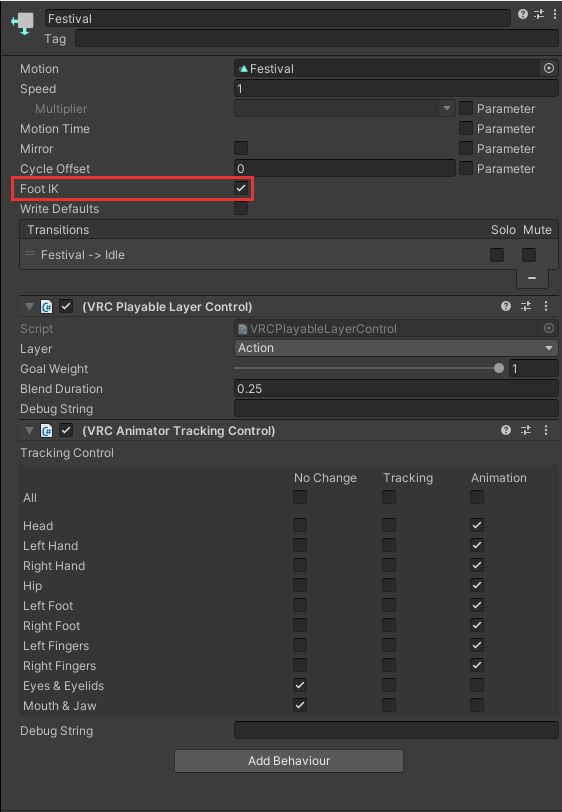
- Idle state: turn off Write Defaults, add VRC Playable Layer Control (Action, Goal Weight 0, 0.25) and VRC Animator Tracking Control (everything except eyes and mouth = Tracking).
- On the avatar's VRC Avatar Descriptor, go to Playable Layers → Customize and put XSTAGE_Action in the Action slot.
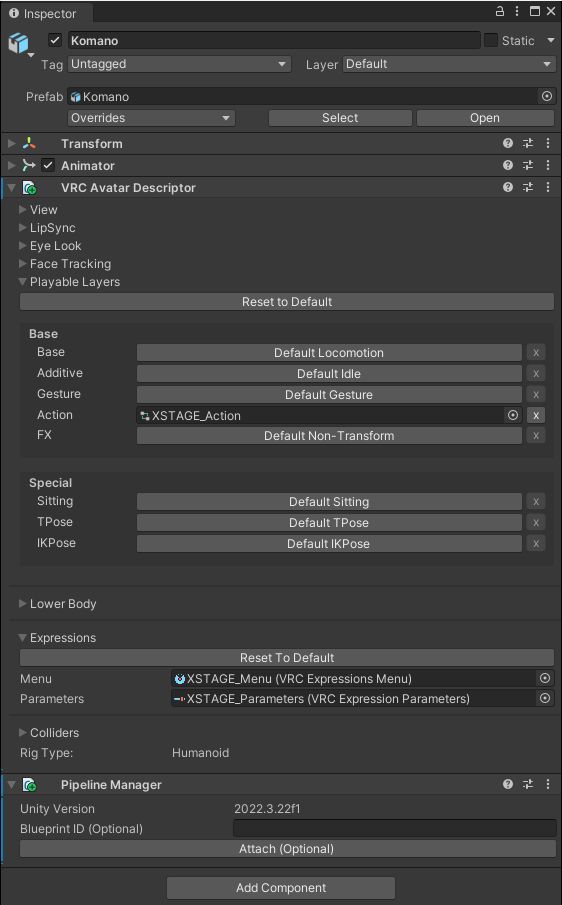
Why Foot IK needs to be on: when you apply the motion to an avatar whose body differs from the original, foot positions drift slightly and the feet slide. Foot IK locks the feet to the foot positions recorded in the motion.
5. Create the menu button
- Add XSTAGE_Dance to the Expression Parameters asset: Int, Default 0, Saved off, Synced on.
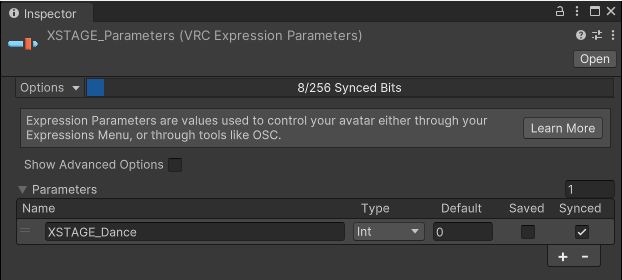
- Add a control to the Expressions Menu asset: Name Festival, Type Toggle, Parameter XSTAGE_Dance, Value 1.
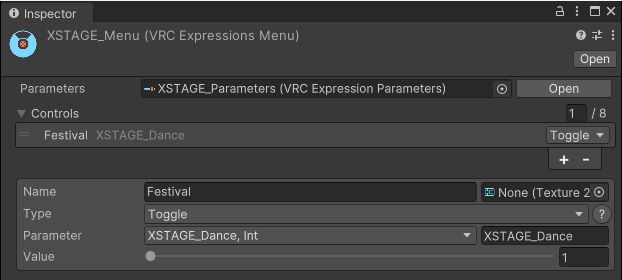
- On the Avatar Descriptor, go to Expressions → Customize and put the two assets in the Menu and Parameters slots (below the image in Step 4).
To add more motions, make one more state and switch to it with XSTAGE_Dance Equals 2, then add another Toggle to the menu with Value 2. You keep using the same single parameter.
6. Test in Unity and send it to VRChat
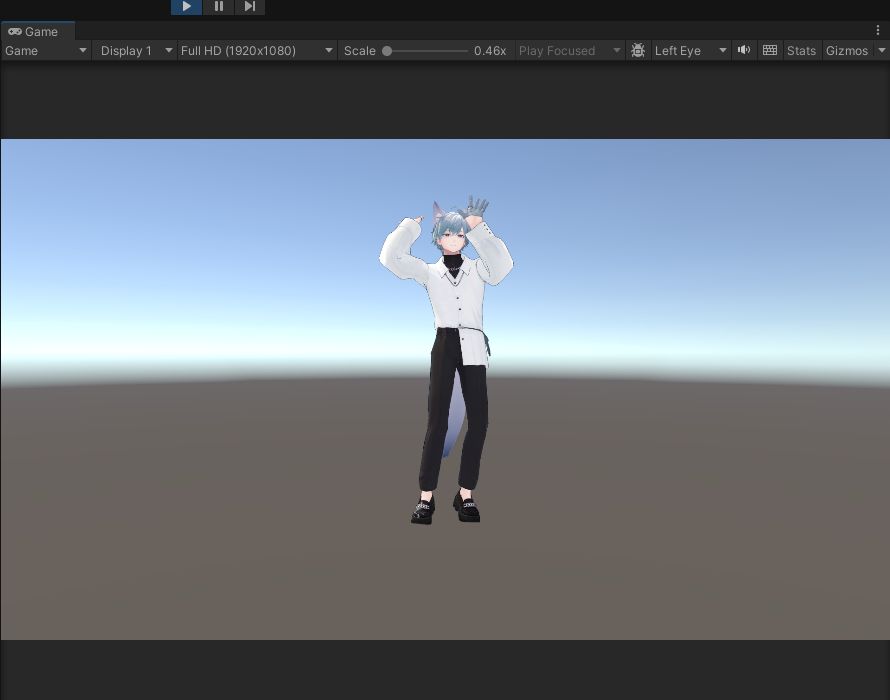
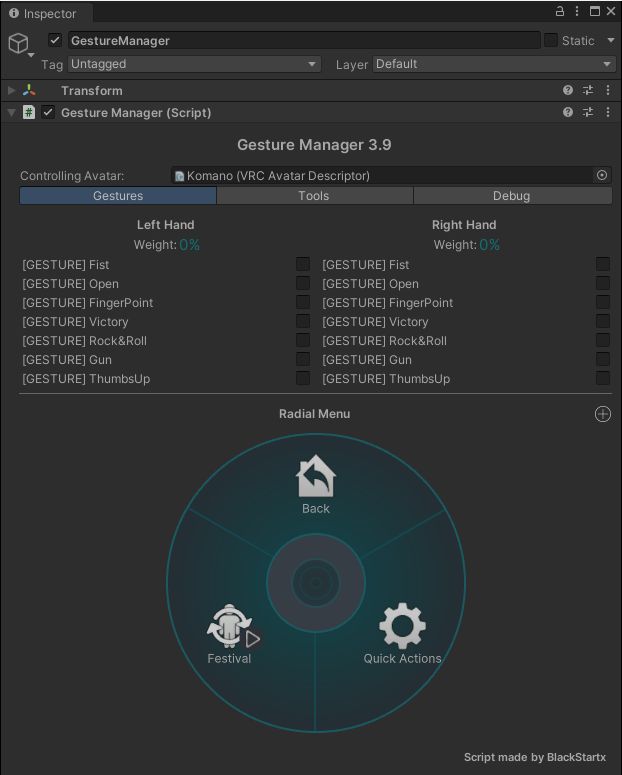
- Place Gesture Manager in the scene, press Play, and press Festival in the Gesture Manager menu. You can check the dance right inside Unity.
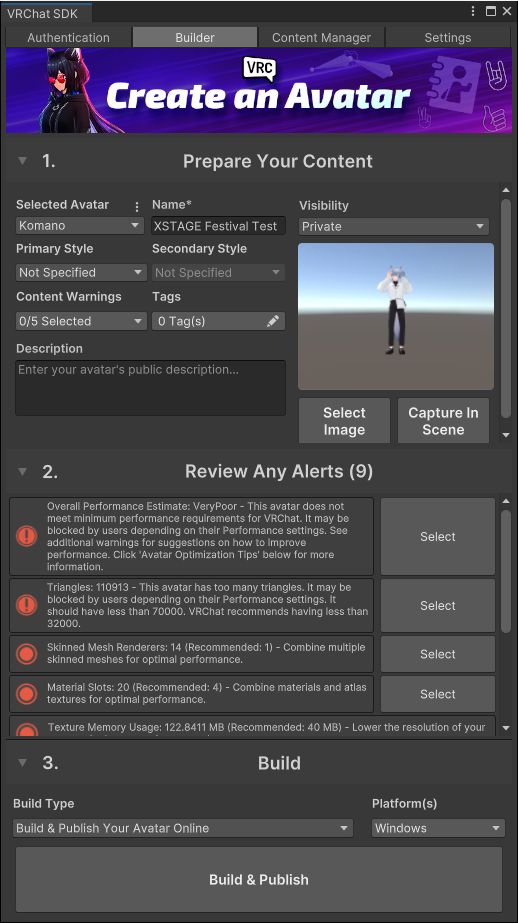
- VRChat SDK → Show Control Panel → Builder tab. Build & Test = test only in VRChat on your own PC (no upload). Build and Upload = upload to the VRChat servers, available from the New User rank on your VRChat account (accounts at the Visitor rank right after signing up cannot upload, but can use Build & Test).
7. Dance in VRChat
- (If you used Build & Test) Press Esc → Avatars → SDK Test Avatars, then pick your avatar and put it on.
- Press R (Action Menu) → Expressions → Festival.
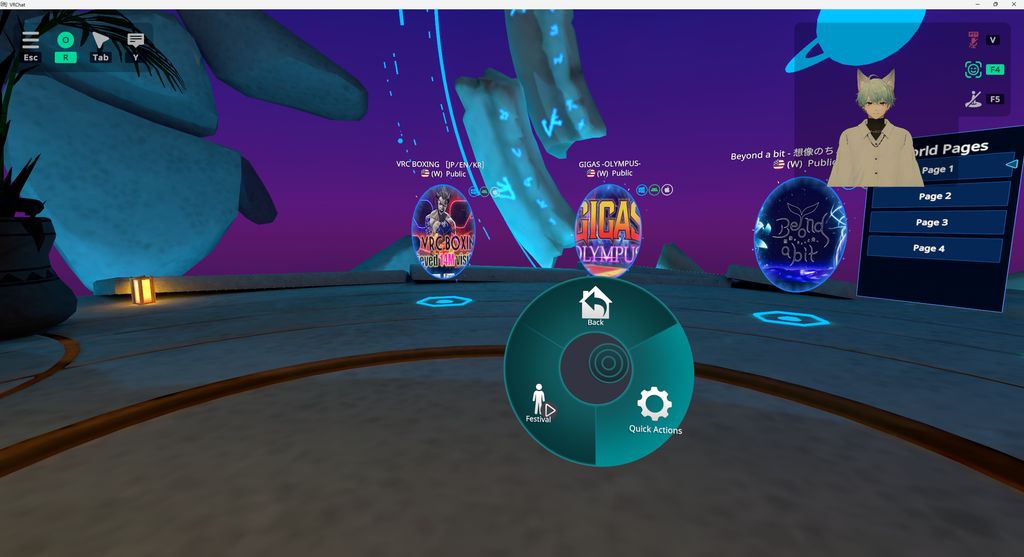
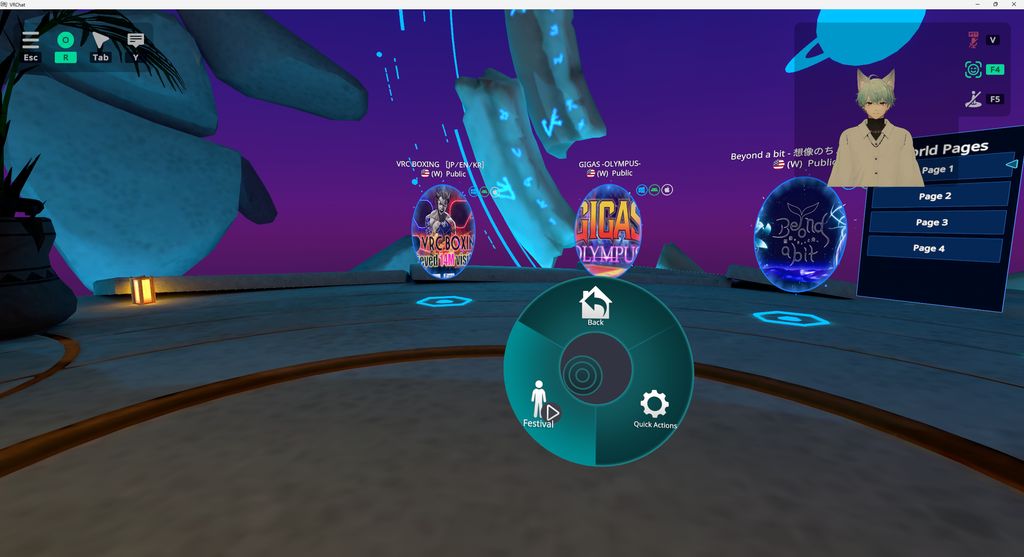
- Check it in front of a mirror. Press the same button again to stop.
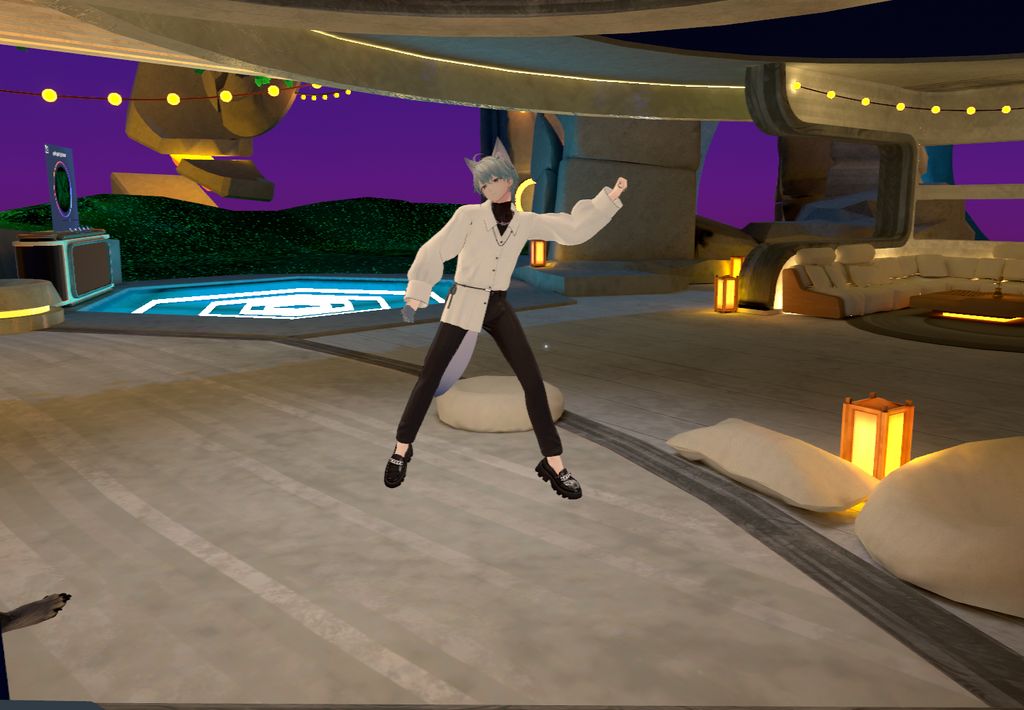
Festival dance in front of a VRChat personal mirror (5 sec)
License
The Standard license is for non-commercial use only. Commercial use, such as monetized worlds or distributing paid avatars, requires the Commercial license, and you can upgrade after purchase. Reselling or redistributing the original motion data is not allowed.
Try it for free first
If you want to test before you buy, you can start with the free motion that changes every month. See this month's free motion data
FAQ
Can I test XSTAGE motions in VRChat for free?
Yes. With the free motion that changes every month, you can test the whole process, from downloading the FBX to connecting the Expression Menu, before you buy anything.
Can I put the FBX straight into VRChat, or does it need conversion?
You can use it as-is with no conversion. In Unity, change Animation Type in the Rig tab to Humanoid (Avatar Definition: Create From This Model) and Apply, check the bone mapping in Configure, then set Loop Time and Root Transform Bake Into Pose in the Animation tab. The avatar receiving the motion also has to be Humanoid.
My avatar's bone structure is different from XSTAGE characters. Is that OK?
Yes. If it has a humanoid rig, Unity's default retargeting fits it in most cases. For a more accurate fit, upload your avatar to XSTAGE Studio, try the motion on it, and then download.
Should I put it in the Action layer or the FX layer?
Put full-body dances and large emotes in the Action layer. The Action layer's default weight is 0, so the state you want to play needs VRC Playable Layer Control (Action weight 1) and VRC Animator Tracking Control (Animation) for the dance to show. Hand poses go in Gesture and facial expressions in the FX layer. As VRChat recommends, keep Write Defaults at the same value across the whole avatar (mixing On and Off makes the SDK show a warning). (VRChat official docs: State Behaviors)
Can I use it in monetized worlds or paid avatars?
Commercial use requires the Commercial license. You can choose it when you buy, or upgrade later from your purchase history.
Panduan berkaitan